Power Apps
How to use Barcode Scanner Application in Power Apps
This is how you can make a Barcode Scanner Application from Power Apps in few steps.
- Create New Canvas App in Power Apps Solution (Application format = Phone).
- Select the “Canvas App” option from :
- Select Format of the application as Phone:
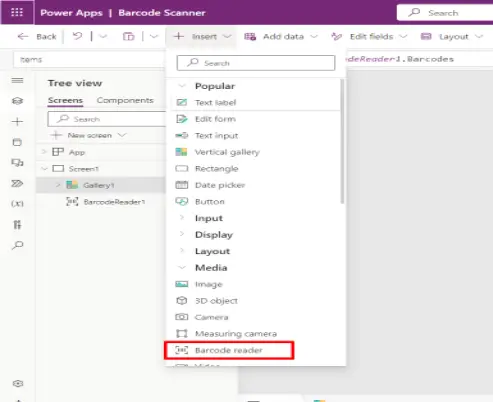
In Blank canvas insert the Barcode Reader by following these steps: "(Insert> Media> Barcode Reader)".
- Look for “Barcode reader” in Insert button:
- Barcode reader Button will appear on the Screen:
Now Add a Gallery and set the layout property of the Gallery to (Title and Sub-Title) and set item property of Gallery to [BarcodeReader1.Barcodes] where “BarcodeReader1” is name of the Barcode Reader.
- Select Vertical Gallery to show the recorded data by Barcode Scanner:
Your Barcode Reader Application is now ready to use.
Now open install and open Power Apps in your mobile phone:
- Wait for application to load in Mobile:
- Click on the Application to open it :
- This is the first screen of our Barcode Reader Application:
Now Click On The Barcode Reader Button To Open The Mobile Camera to Scan Barcode.
Scan Any bar Code With The Camera And App Will Capture Its Data:
- In this Gallery (CODE_128) is the type of Barcode and (ABC-abc-1234) is data of Barcode.