
Power Apps
Customizing Controls in Power Apps: Hidden Gems You Should Know
Introduction:
Power Apps offers a plethora of controls that enable you to create dynamic and interactive user interfaces for your apps. While many controls are well-known and commonly used, there are several hidden gems that can take your app customization to the next level. In this blog, we'll explore some lesser-known controls and customization options in Power Apps that will unlock new possibilities for your app designs.
Data Table Control:
Discover the power of the Data Table control, a versatile tool that allows you to display tabular data with advanced functionalities. Learn how to enable sorting, filtering, and grouping to provide a rich user experience for handling large datasets.
- So in here data table you can view your data or large data sets in the table.
- It is similar to Gallery in power apps but is not flexible like gallery. Yes you can select an item in the data table.
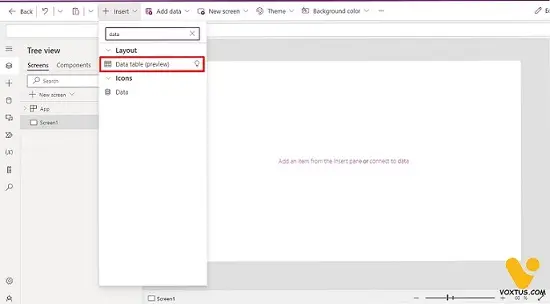
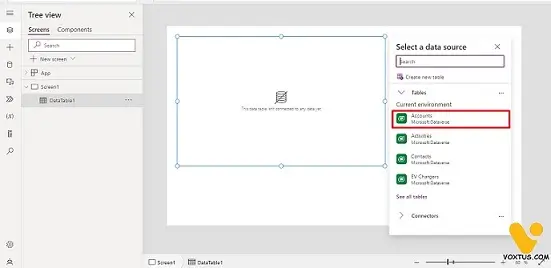
- Just add your data in the data table control and it will show all data in the table.
- And here if you want to edit the data in the data table then you need to add a form control also.
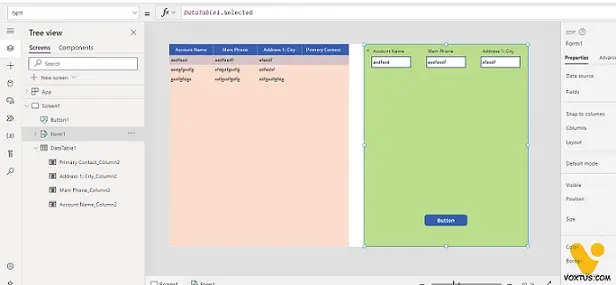
- And after that change the item property of the form control to (DataTable1.Selected).
- It will show the data of the selected column in the form control.
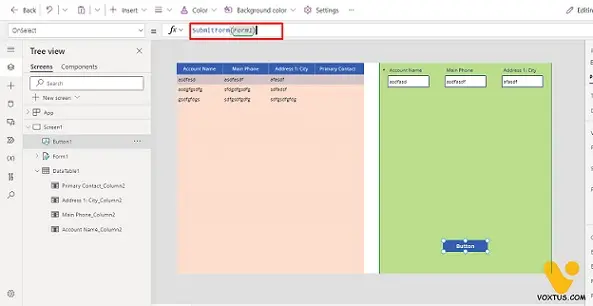
- After that add a button in the screen and set its onselect property to [submitform(Form1)].
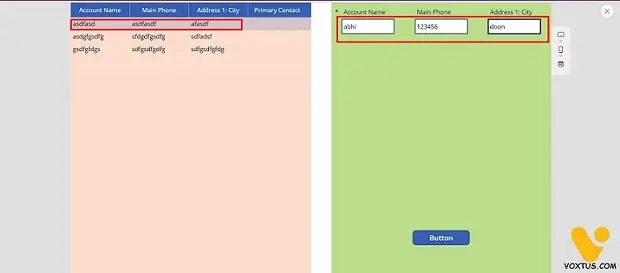
- Now as you have added a button in the screen your can change the data in the data table control.
- You can change the data of the data table control.
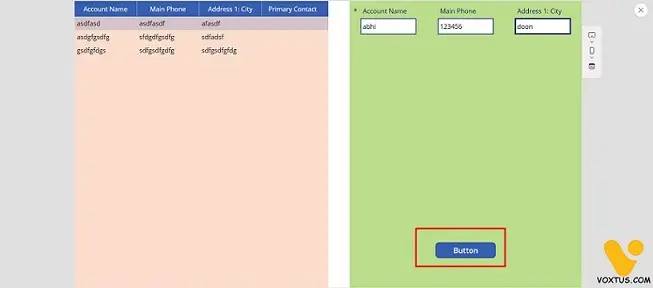
- Like this change the selected information and click on button.
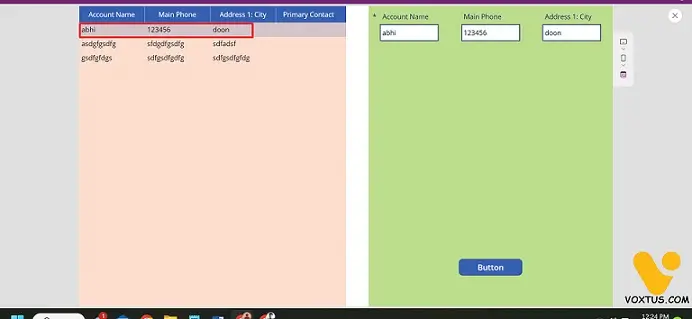
- It will change the data of the data table like you can see in the above image.


