
How to create table in Excel through Microsoft Power Automate
Before starting if you have your excel sheet in your local system them you have to upload it into OneDrive or SharePoint. In this blog post we will see how it will work with OneDrive.
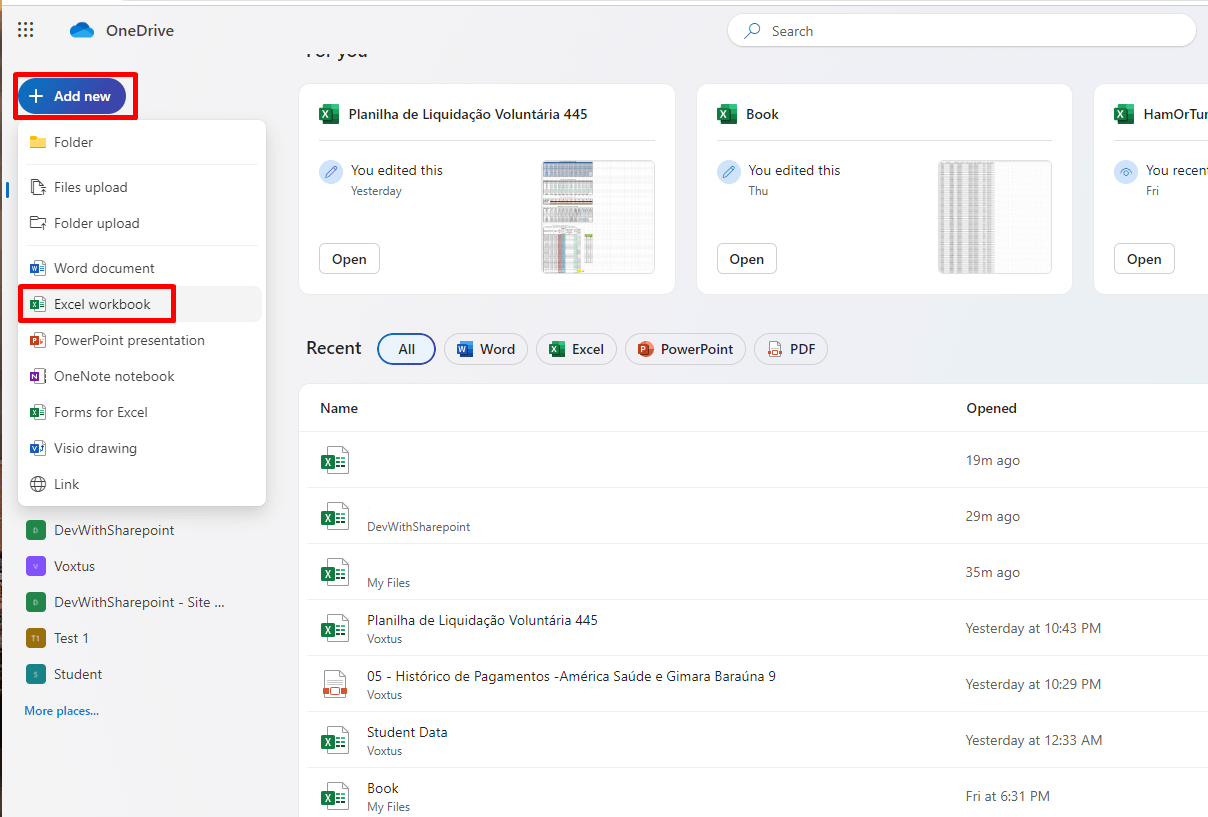
- Now open OneDrive in your browser and click on “Add new” and then click on Excel Workbook.
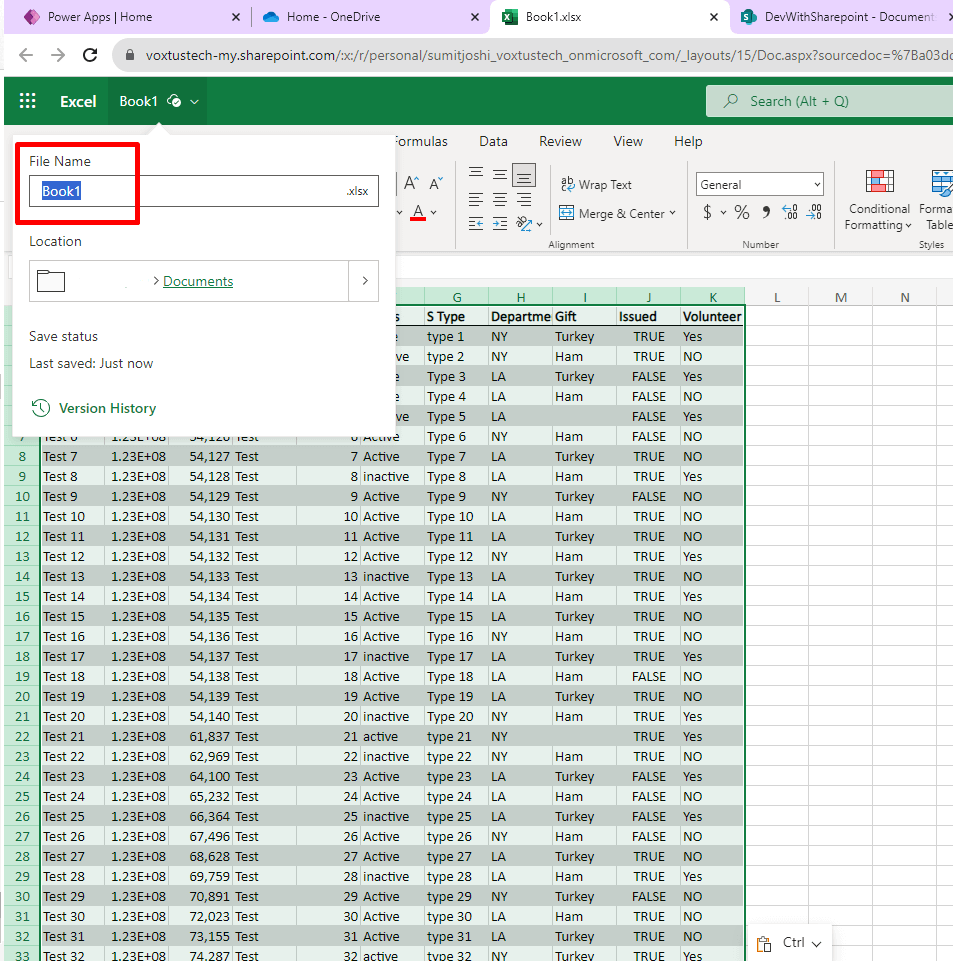
- Now this will open a blank worksheet in a new tab. Here edit the sheet name and paste your excel data from the excel sheet which is in your local computer.
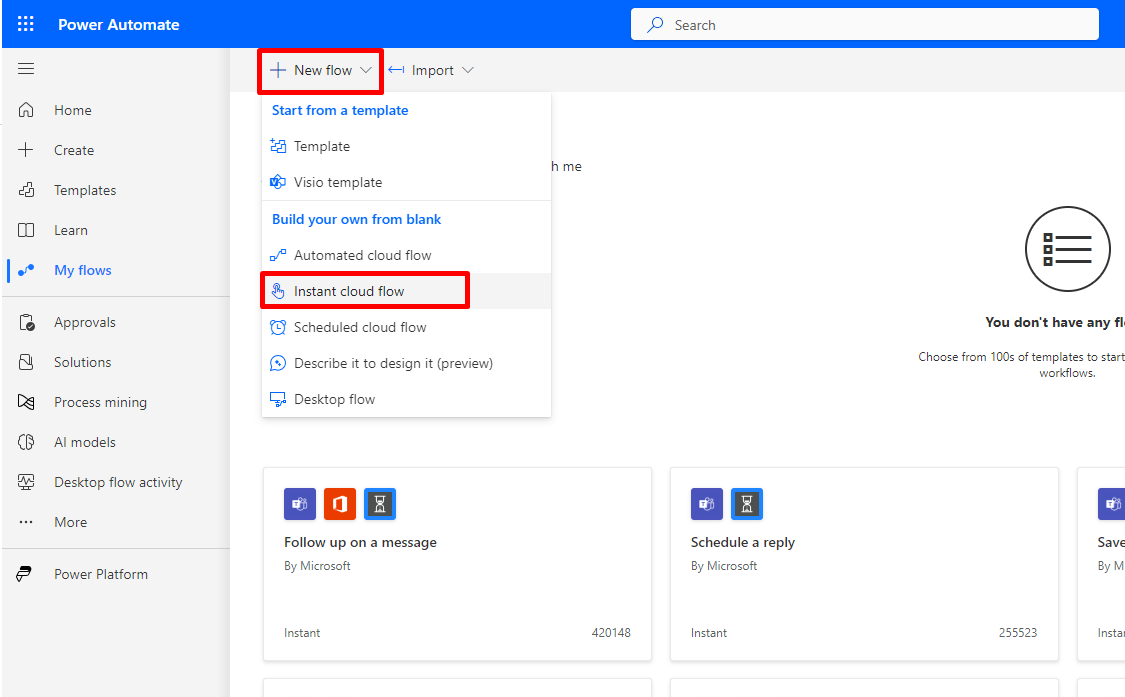
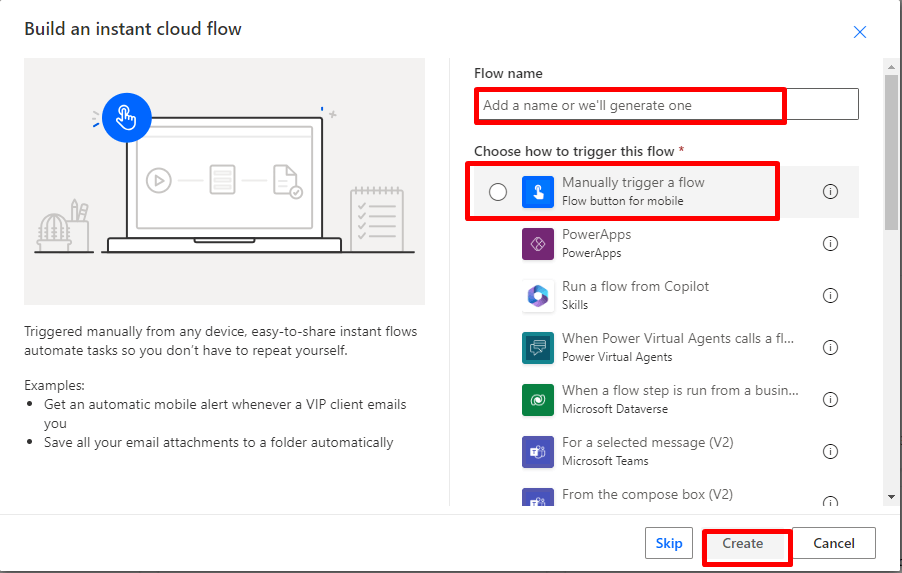
- Now open Power Automate in another tab and create an instant flow with the manual trigger.
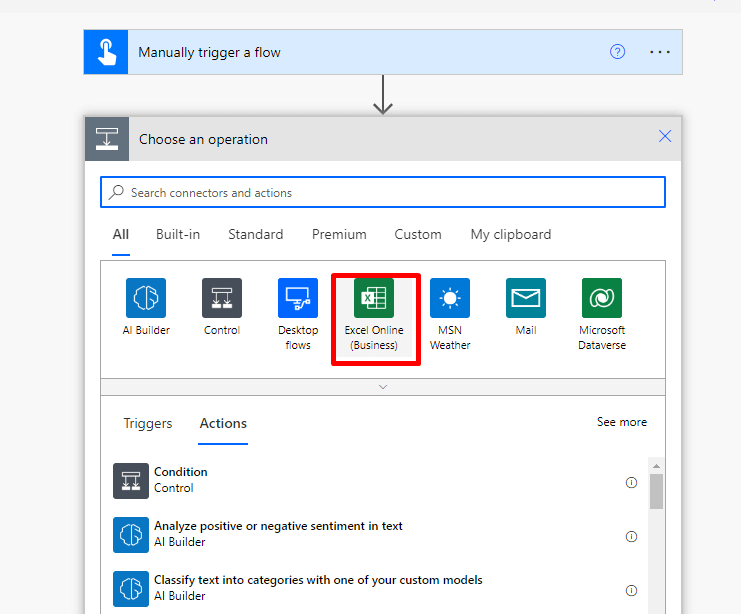
- Add a new step just by clicking on “New step” button.

- Select “Excel Online” as a connector.
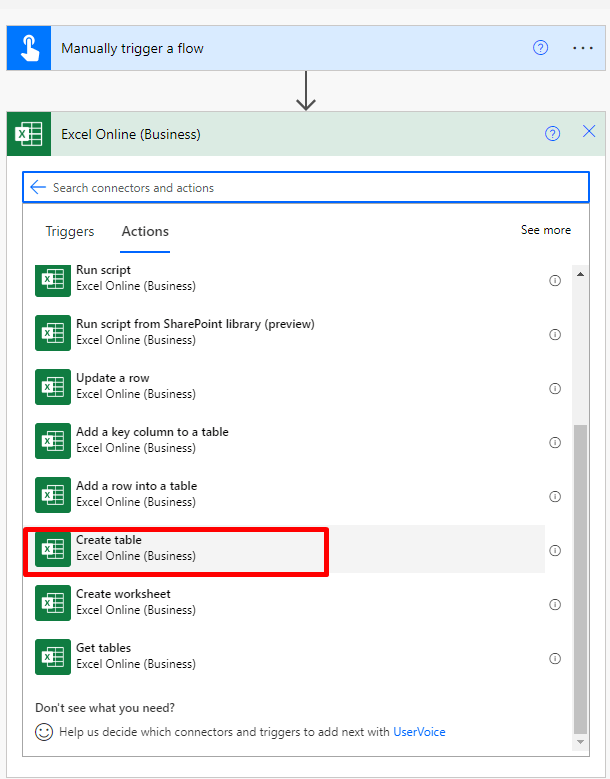
- Select “Create table” in action.
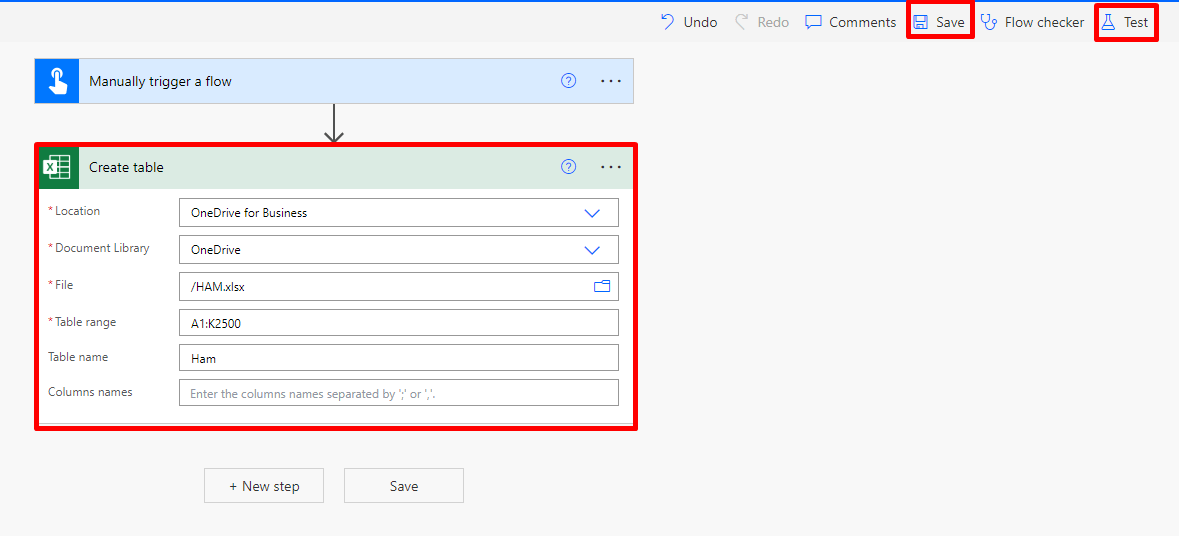
- Enter all the details in their respective fields, you can refer to below image. Then click on "save". Once successfully saved we’ll hit on Test button to check this flow’s working.
- Meanwhile you all can see currently this excel sheet is not formatted as a table.
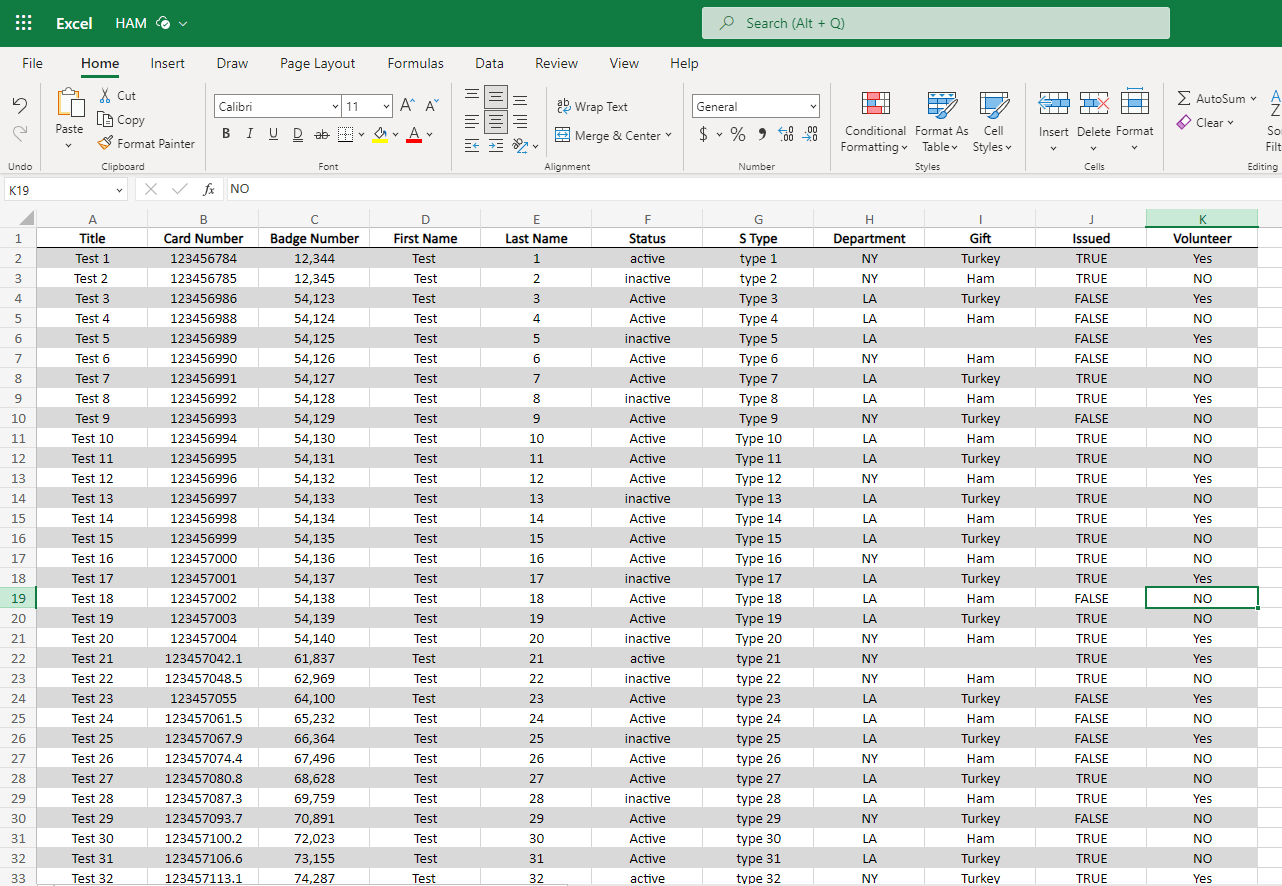
- Meanwhile you all can see currently this excel sheet is not formatted as a table.
a.b.


c.d.


e.f.


- Once the flow runs successfully you’ll get notified.

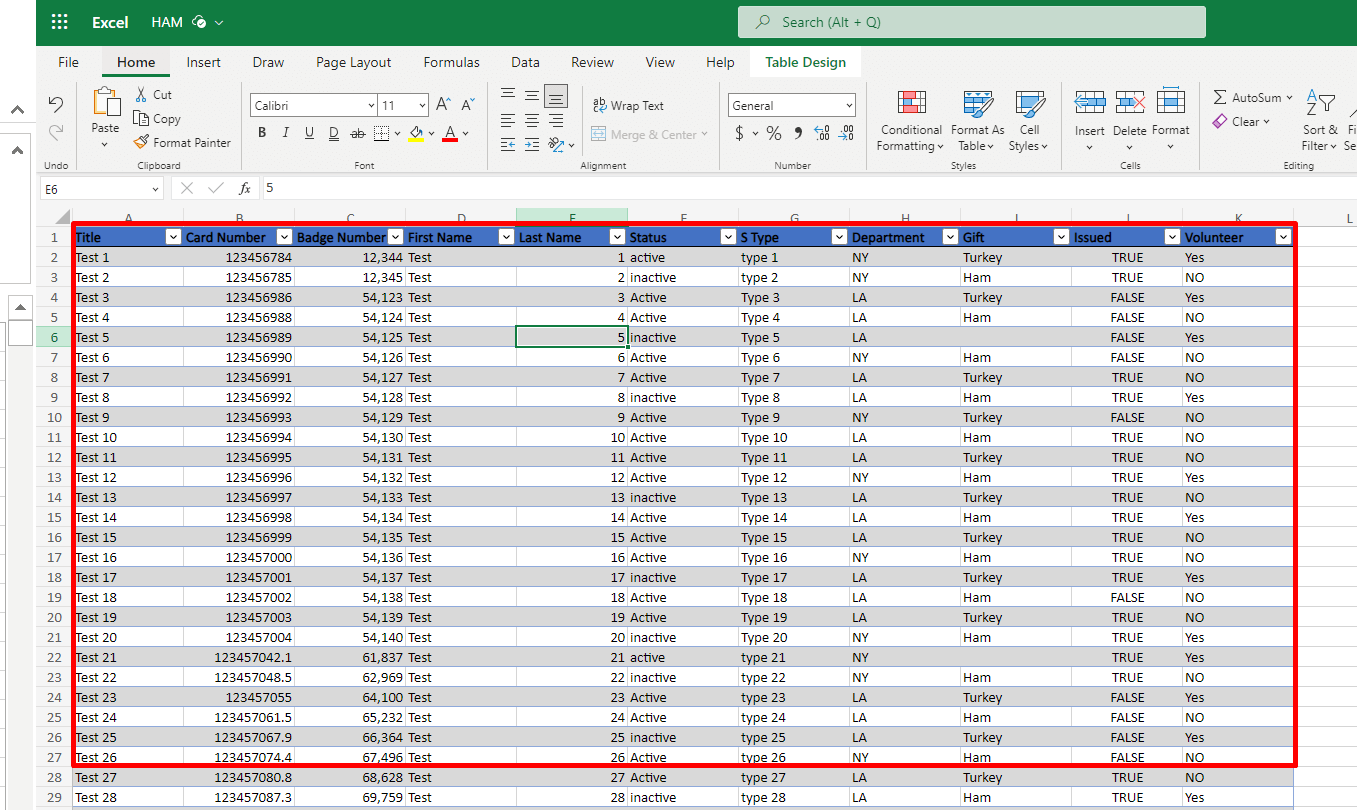
- After a successful run of flow, the excel sheet will be formatted as a table.
In this guide, we've walked you through the step-by-step process of creating tables in Excel using Microsoft Power Automate. We hope you've found this tutorial helpful in harnessing the power of automation to streamline your data management tasks.
As you dive deeper into the world of Power Automate, you'll discover that the possibilities are virtually limitless. This is just the beginning of what you can achieve with this robust tool. From data collection and processing to report generation and task automation, Power Automate can be your trusted ally in simplifying and enhancing various aspects of your business operations.
As you continue your automation journey, keep an eye on new features and updates from Microsoft, as Power Automate evolves to offer even more capabilities and integrations.


