
How to Generate a .pfx File Using .key and .crt Files
A .pfx file (also called PKCS#12) is commonly used to upload SSL certificates to servers, cloud platforms, and applications like IIS, Azure, Power Pages, Power Apps Portals, etc.
It contains both the private key and the certificate in a single, password-protected file.
This guide explains everything from scratch, including downloading OpenSSL and converting .key and .crt files into a .pfx file.
What You Need Before Starting
Make sure you already have:
- Private Key file → private.key
- Certificate file → certificate.crt
(Sometimes this may also be named .cer)
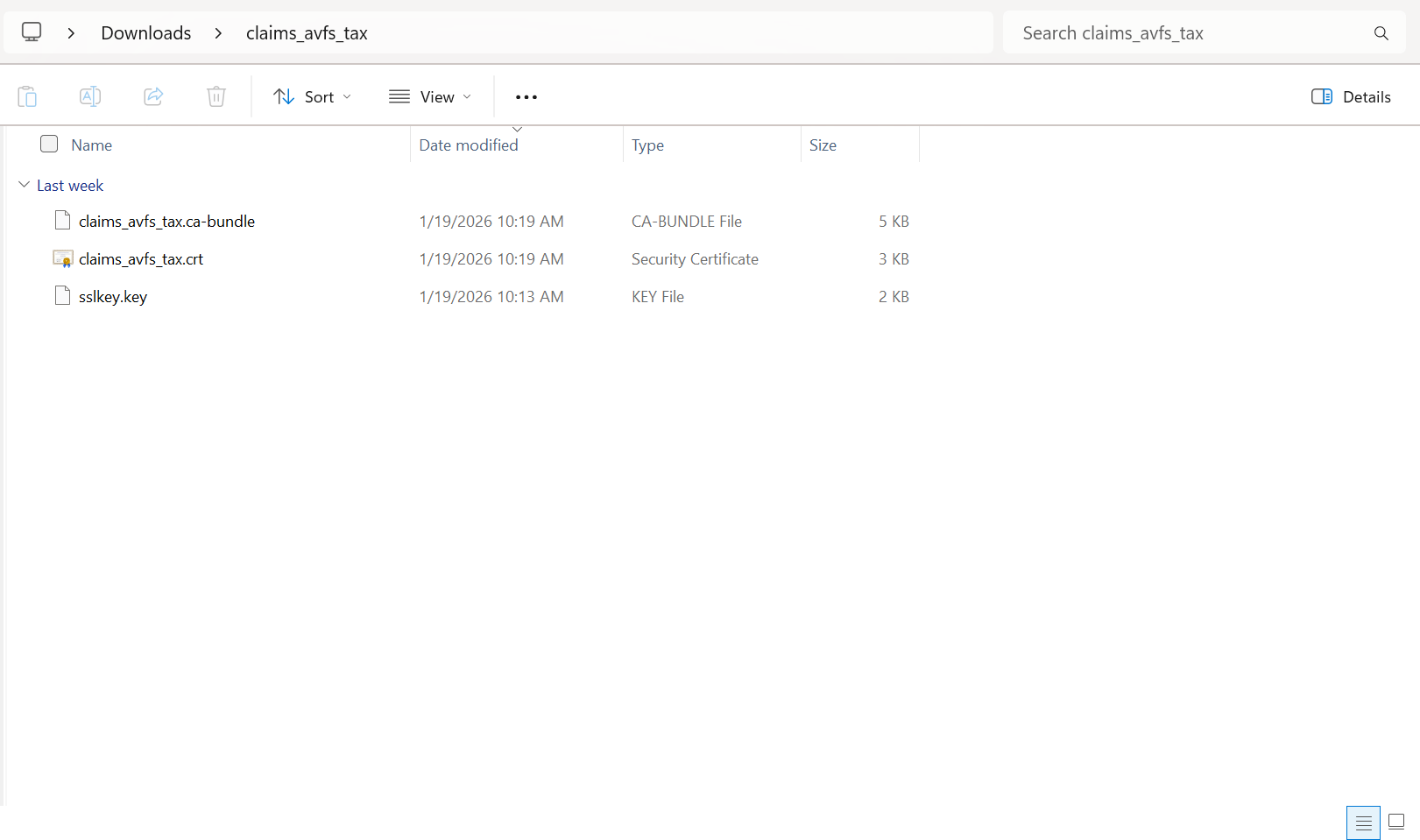
Important: The .key and .crt must belong to the same certificate. Otherwise, the .pfx file will not work.
Step 1: Download and Install OpenSSL (Windows)
OpenSSL is a free tool required to generate .pfx files.
- Go to the official OpenSSL Windows binaries page
- Download the Win64 OpenSSL version (recommended for most systems)
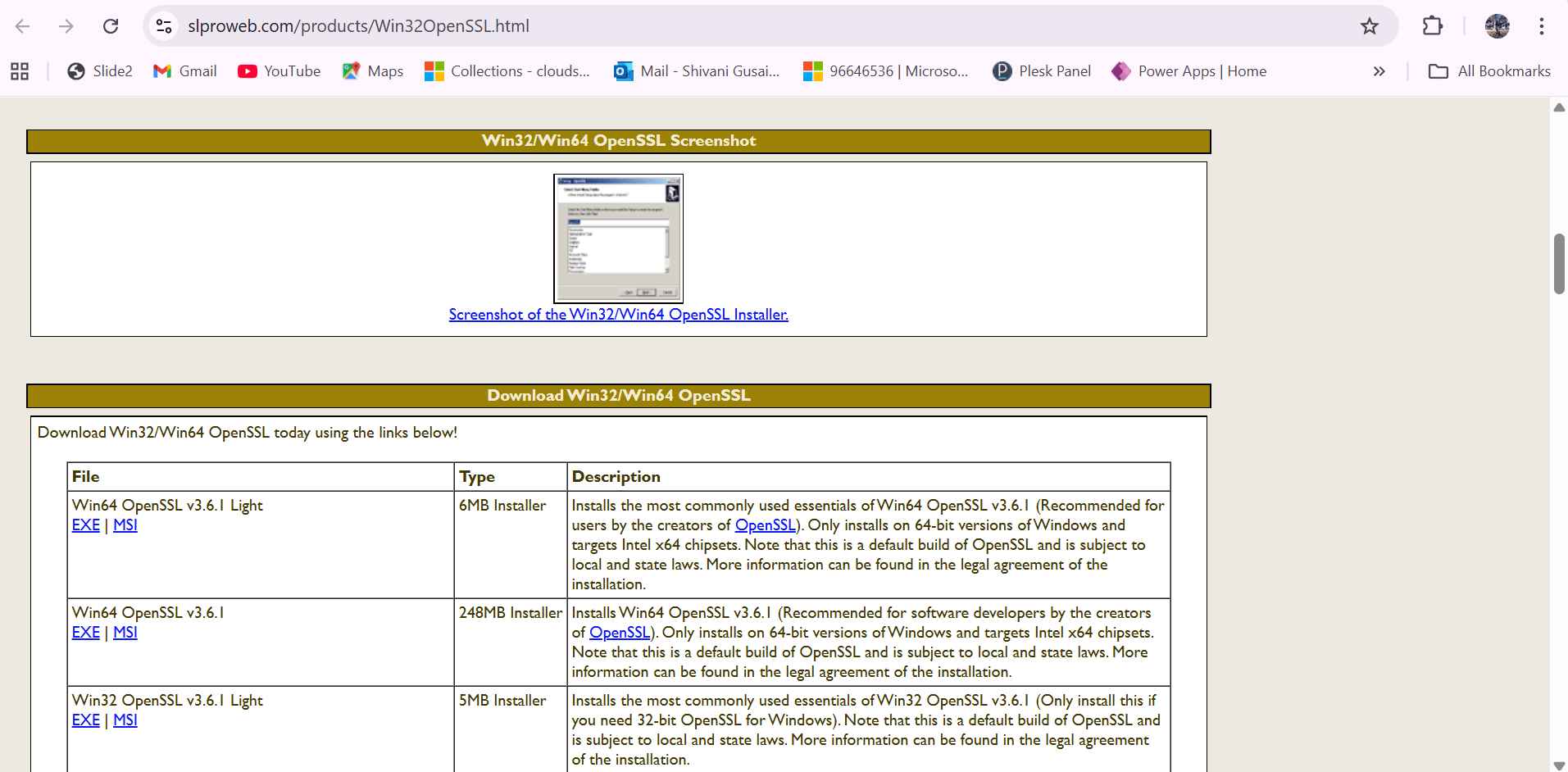
- Run the installer
- During installation:
- Select “Install OpenSSL binaries to the Windows system directory”
- This allows OpenSSL to be used from Command Prompt
After installation, OpenSSL will be available globally on your system.
Step 2: Open OpenSSL (Not Command Prompt)
- Click Start Menu
- Search for OpenSSL
- Open OpenSSL Application / OpenSSL Shell
Step 3: Navigate to the Folder Containing .key and .crt
- Locate the folder where your .key and .crt files are stored
Example: C:\Users\info\Downloads\claims_avfs_tax - Copy the full folder path from File Explorer
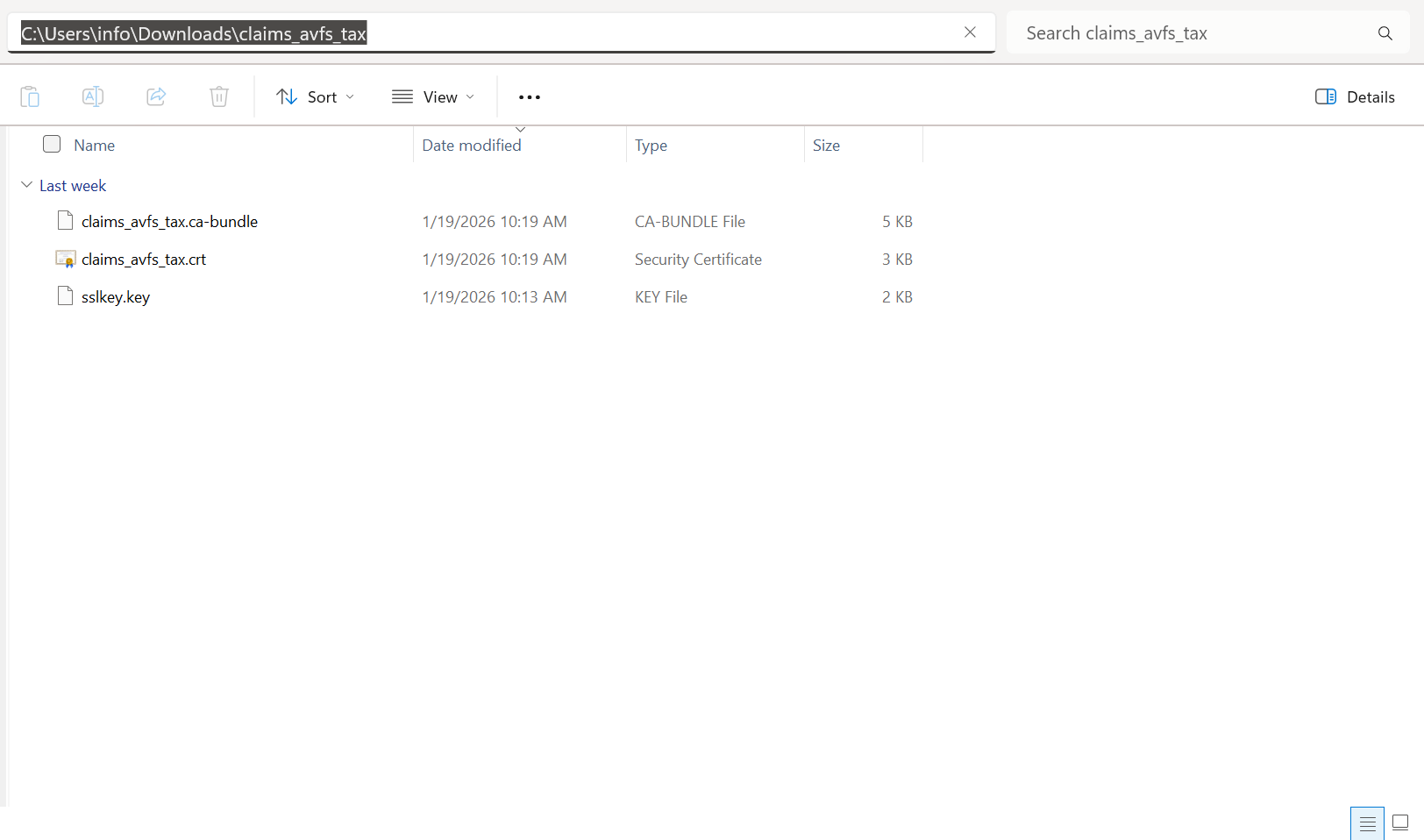
- In Command Prompt, type:
cd (paste-your-folder-path) - Press Enter
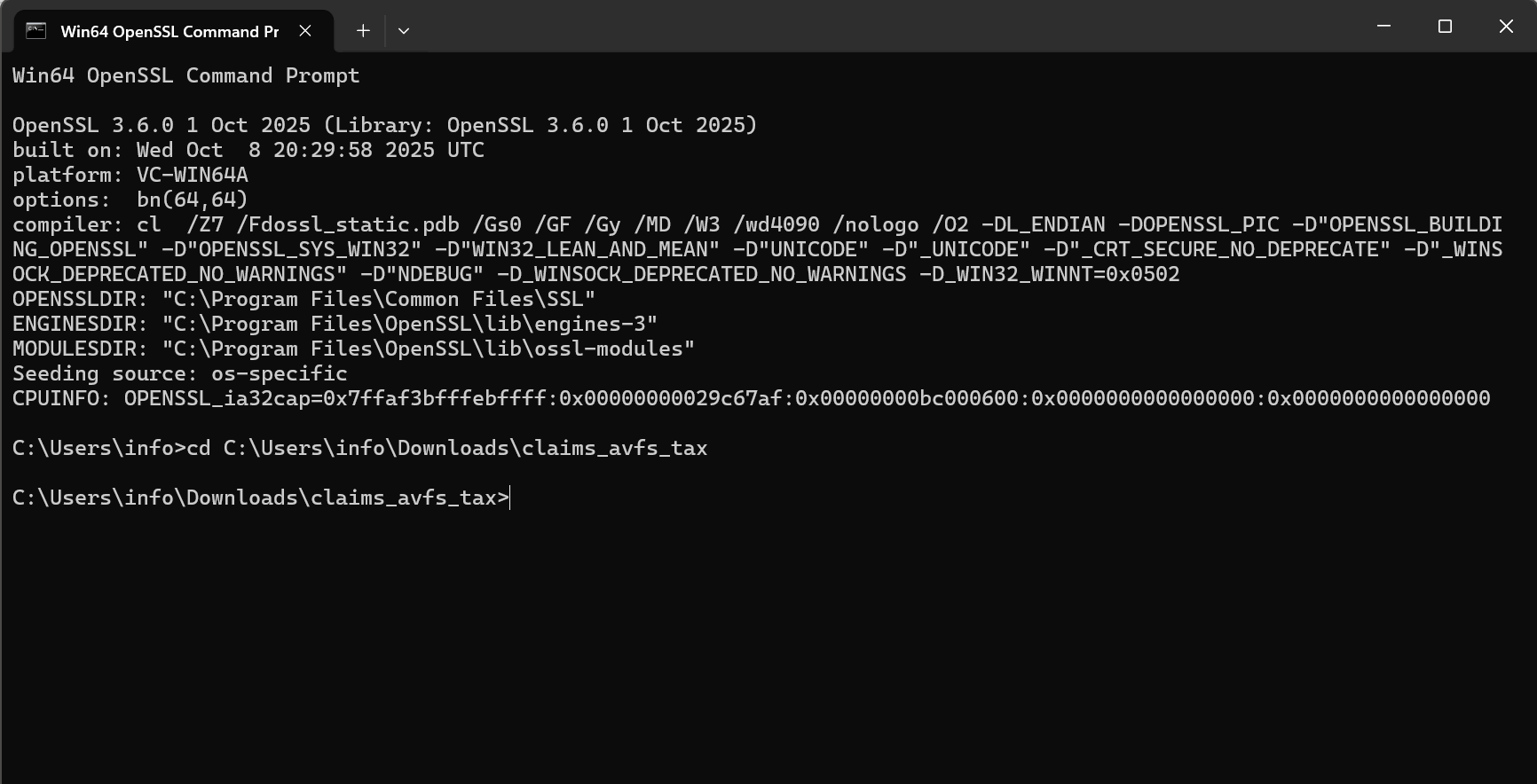
You are now inside the folder that contains your certificate files.
Step 4: Run the OpenSSL Command to Create .pfx
Now run the following command:
openssl pkcs12 -export -out avfs_ssl_certificate.pfx -inkey sslkey.key -in claims_avfs_tax.crt
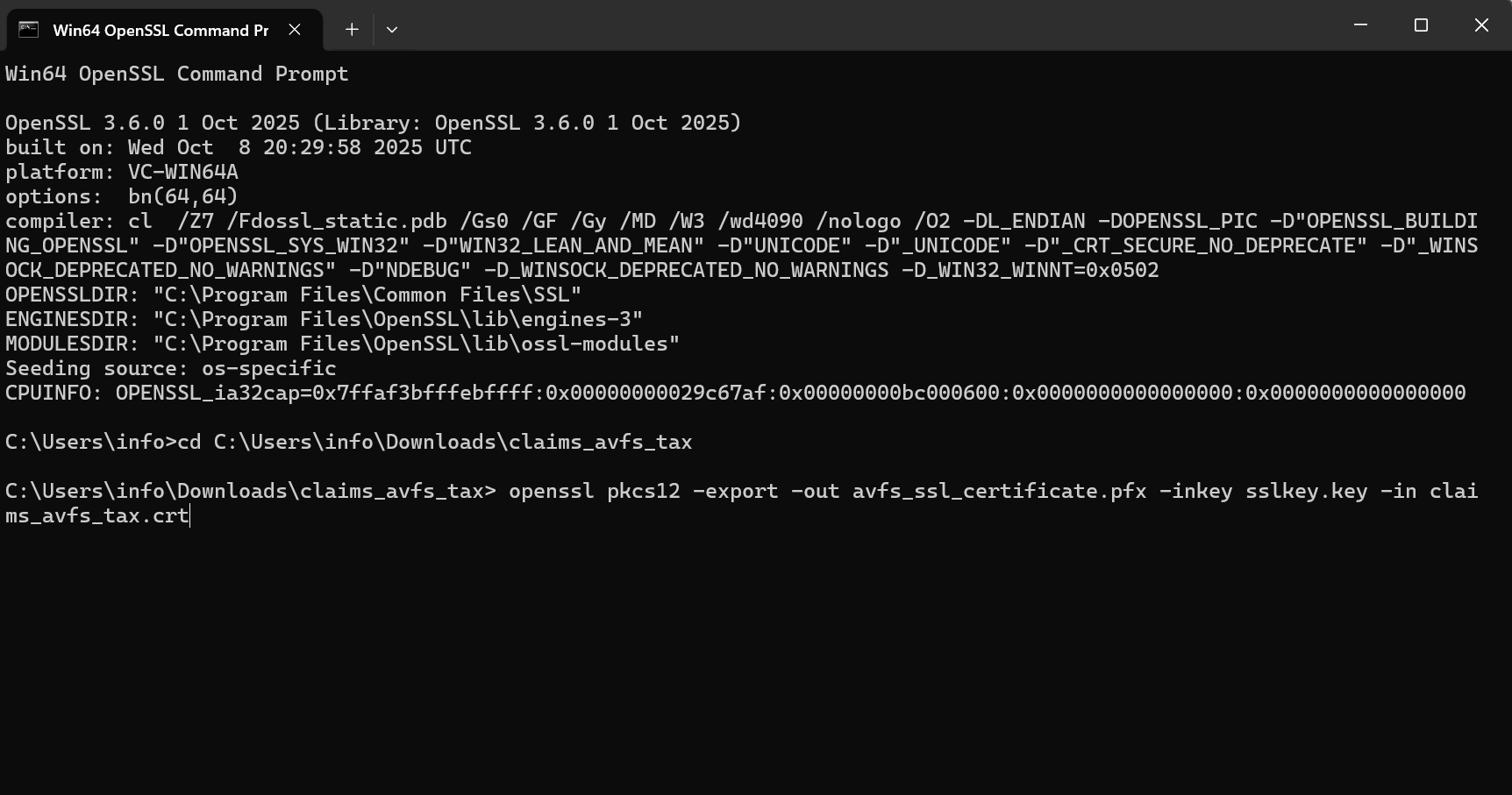
What This Command Means
- openssl → Runs OpenSSL
- pkcs12 → Creates a PKCS#12 (.pfx) file
- -export → Exports the certificate
- -out avfs_ssl_certificate.pfx → Name of the output file
- -inkey sslkey.key → Your private key file
- -in claims_avfs_tax.crt → Your certificate file
Step 5: Set a Password for the .pfx File
After running the command, you’ll see:
Enter Export Password:
- Type a strong password
- Press Enter
- Re-enter the same password to confirm
- Press Enter
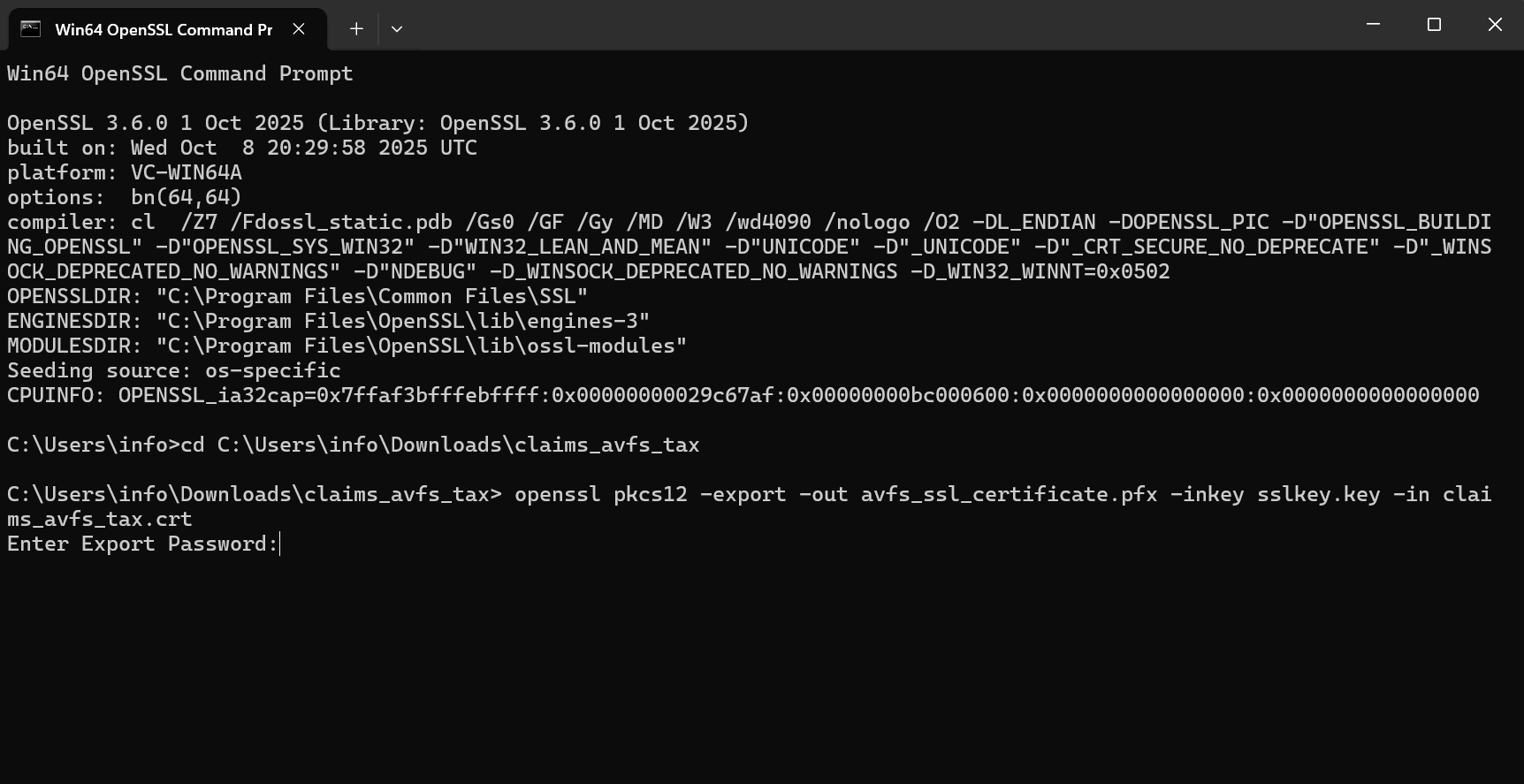
This password is required later when uploading the .pfx file to servers or portals.
Step 6: .pfx File Created Successfully
Once completed:
- A new file named avfs_ssl_certificate.pfx will appear in the same folder
- This file contains:
- Private Key
- Certificate
- Password protection
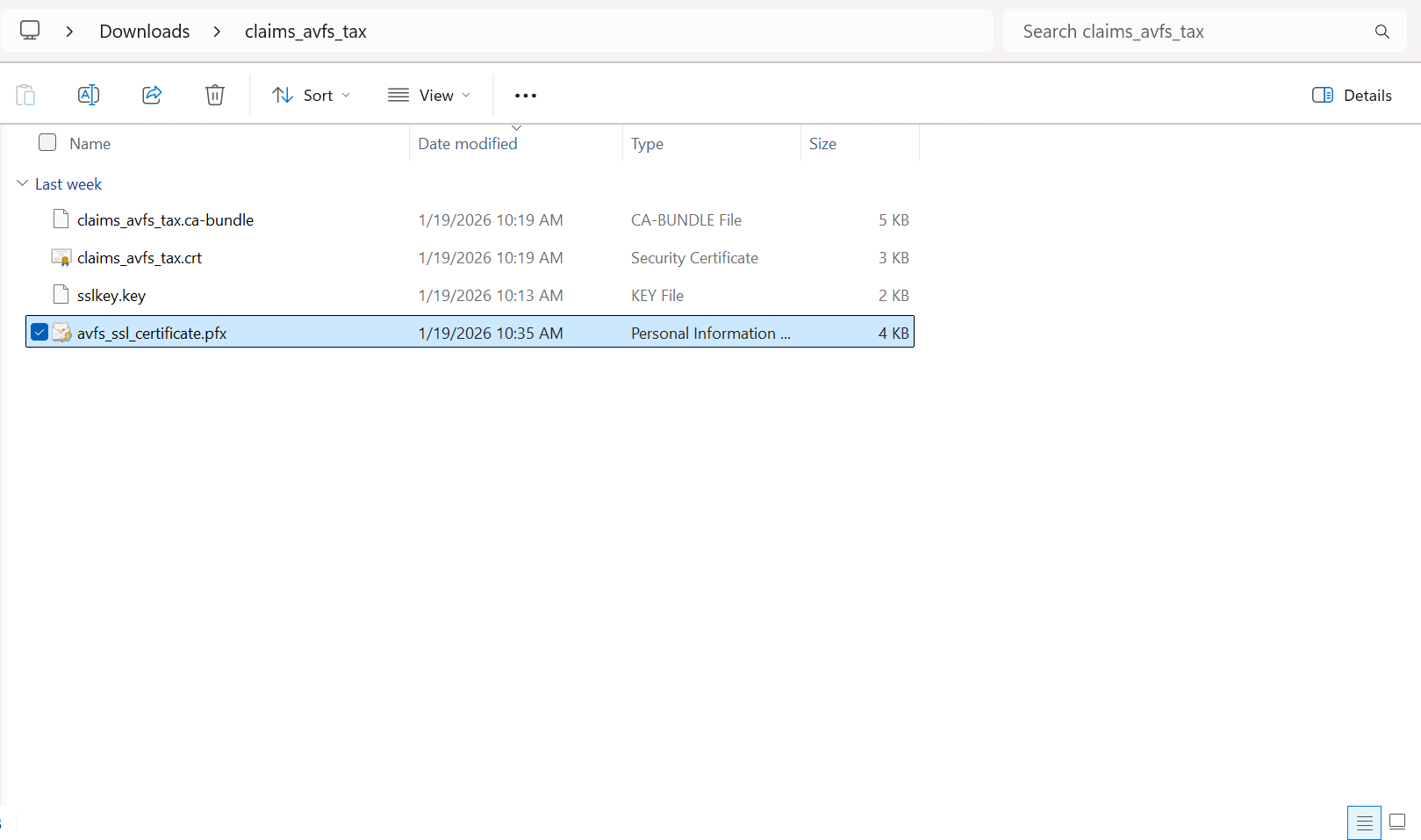
You can now safely upload this .pfx file wherever required.

