
How to Connect a Custom Domain to Power Pages
Connecting a custom domain to your Power Pages website makes your site look more professional and brand-friendly. Instead of using the default powerappsportals.com URL, you can use your own domain like www.yourcompany.com.
In this blog, we’ll walk through the complete process of connecting a custom domain in Power Pages, including SSL (.pfx) upload and CNAME configuration.
Prerequisites
Before you start, make sure:
- Your Power Pages site is in a Production environment
- You own a custom domain (GoDaddy, Namecheap, etc.)
- You have a valid SSL certificate (.pfx file)
Custom domains are supported only in Production environments, not Sandbox or Trial.
Step 1: Open Power Platform Admin Center
- Go to the Power Platform Admin Center
- Click on Environments
- Select your Production environment
Step 2: Navigate to Power Pages Sites
- Inside the selected environment, click Resources
- Select Power Pages sites
- Choose your Power Pages website
Step 3: Click on “Connect Custom Domain”
- After selecting your Power Pages site
- Click on Connect custom domain
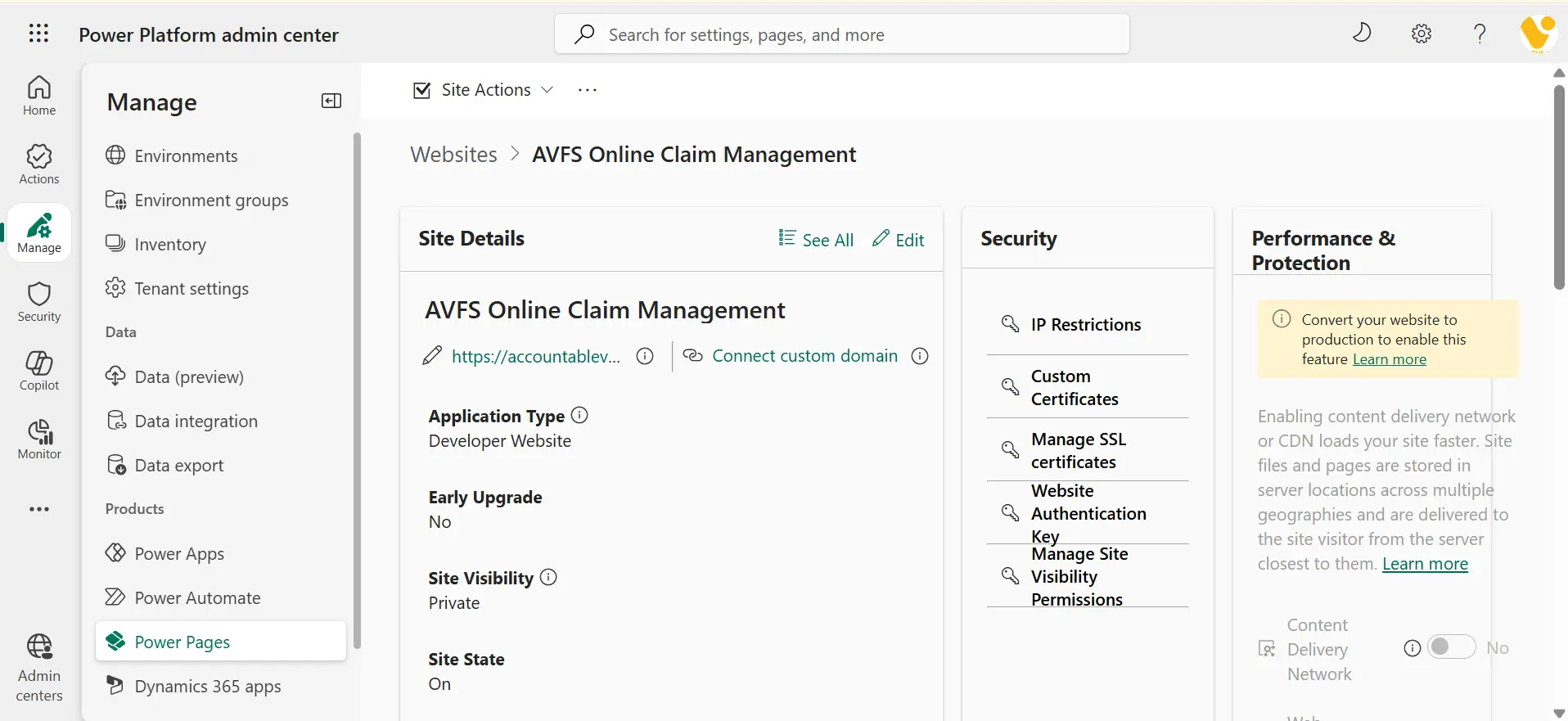
- This will open the custom domain configuration wizard
Step 4: Upload or Select SSL Certificate (.pfx)
To secure your custom domain, Power Pages requires an SSL certificate in .pfx format.
Option 1: Upload a New .pfx File
- Upload your .pfx file
- Enter the certificate password

Option 2: Use an Existing Certificate
- If a certificate is already uploaded, simply select it from the list
If you don’t have a .pfx file yet, you can generate one using OpenSSL.
Click here to learn How to Generate a .pfx File Using .key and .crt Files.
Step 6: Add Host Name (Custom Domain)
After uploading or selecting the SSL certificate, the next step is to add your host name (custom domain) in Power Pages.
- Enter your custom domain name, for example:
- www.yourdomain.com
- portal.yourdomain.com
- Now Power Pages will check whether a CNAME record already exists for this domain.
If the CNAME Is Already Added
If you have already created a CNAME record in your domain provider that points to your Power Pages site:
- Simply enter the host name here
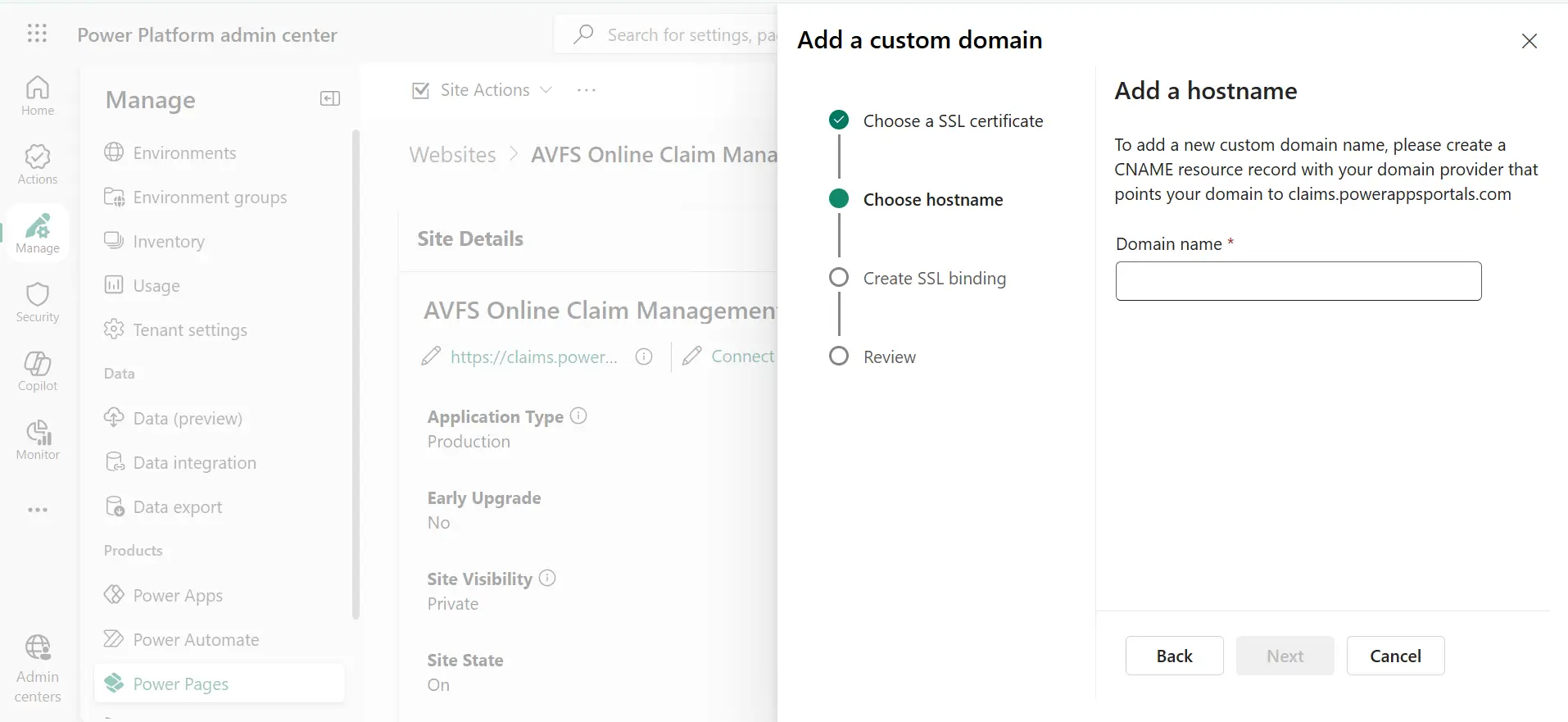
- Click Next / Verify
- Power Pages will automatically validate the domain
No additional DNS changes are required in this case.
If the CNAME Is NOT Added
If the CNAME record is not yet configured, you must add it in your domain provider’s DNS settings.
Power Pages will show you the target URL, which usually looks like this:
yourportalname.powerappsportals.com
Go to your domain provider (GoDaddy, Namecheap, etc.) and add a CNAME record with the following details:
- Type: CNAME
- Host / Name: www (or your subdomain)
- Points to / Value: yourportalname.powerappsportals.com
- TTL: Default
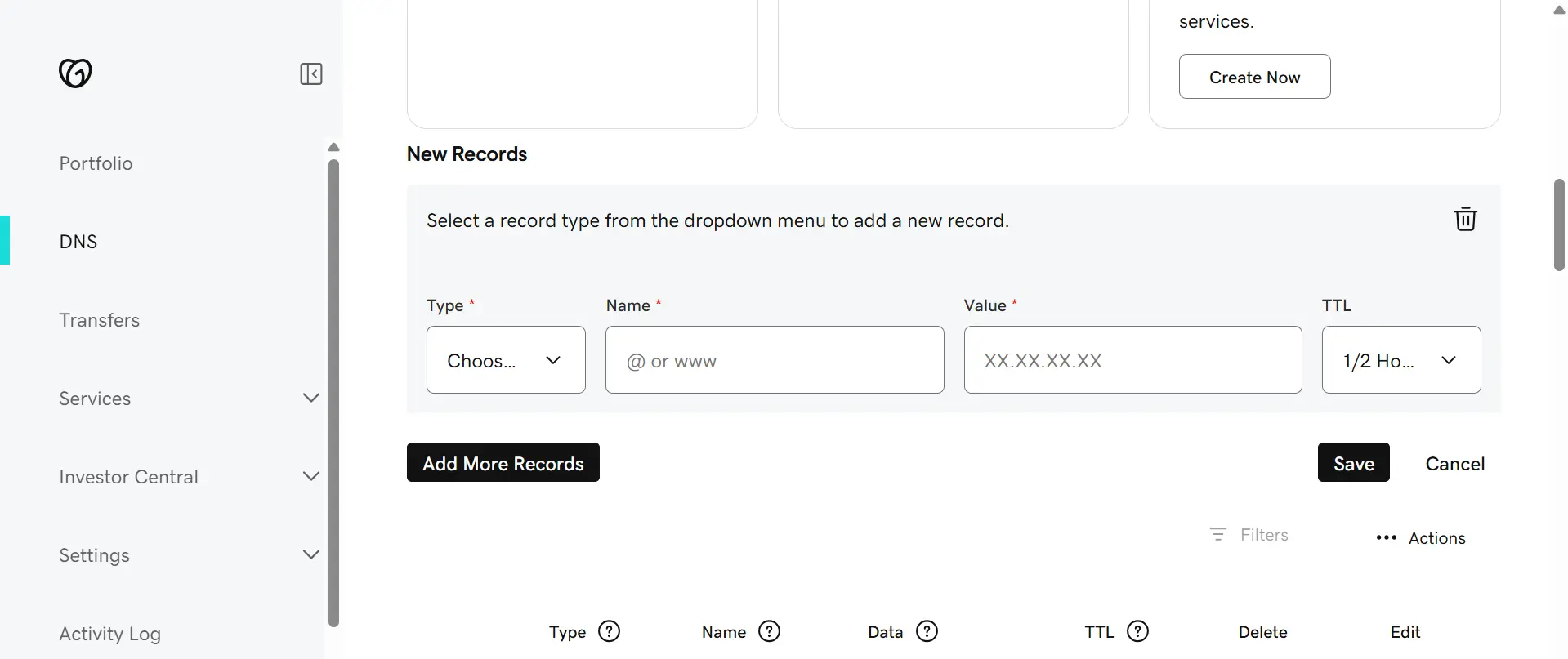
DNS propagation can take 15 minutes to 24 hours.
Step 7: Validate the Domain
Note: This step is applicable only for Power Pages sites with Content Delivery Network (CDN) enabled.
After adding the host name and configuring the CNAME record, Power Pages will display a Validate the Domain section.
Create a TXT Record
- In the Validate the Domain section, copy the following information:
- Record Type
- Record Name
- Record Value
- Go to your domain provider's DNS management page (GoDaddy, Namecheap, Cloudflare, etc.).
- Create a new TXT Record using the values provided by Power Pages.
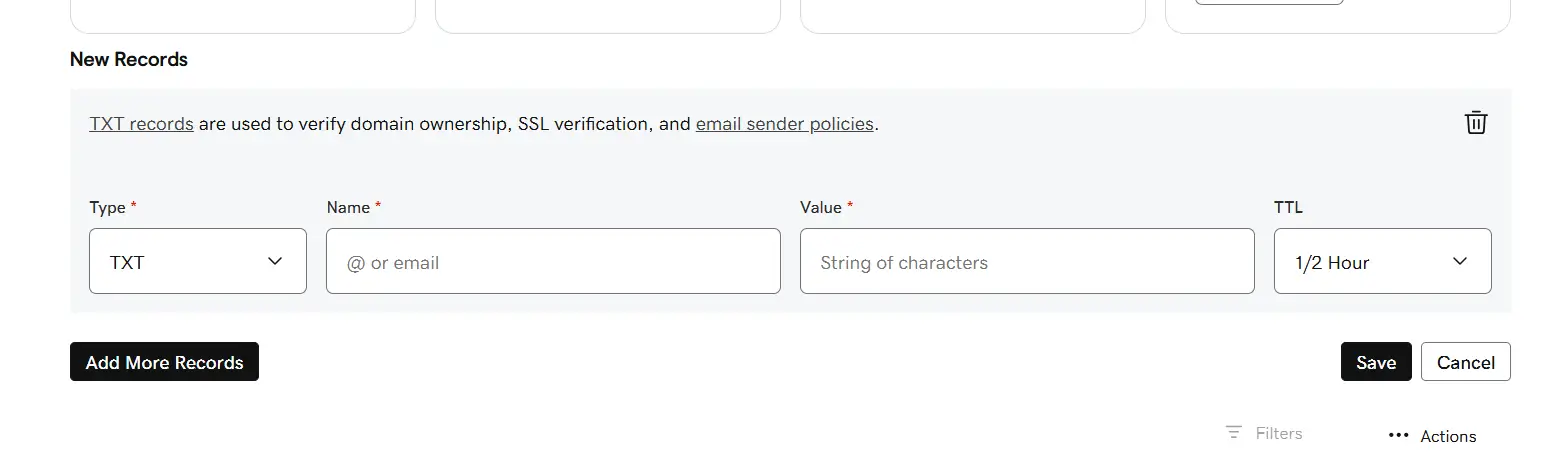
Validate the Domain
After creating the TXT record, DNS changes may take some time to propagate across DNS servers.
- Return to the Power Pages custom domain configuration page.
- Select Refresh to check whether the TXT record has been detected.
- Once the TXT record is validated, the Next button becomes available.
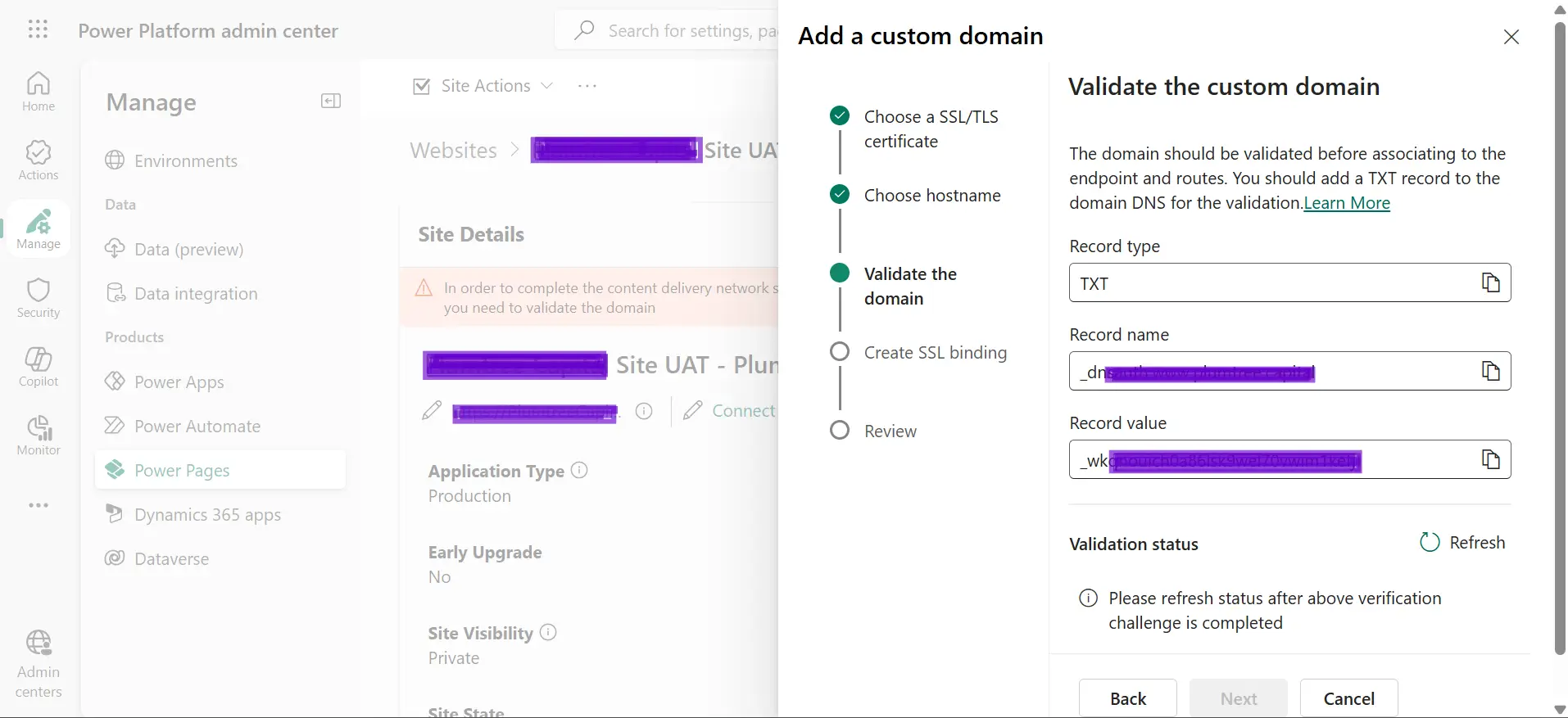
Important: The TXT record must be created within seven days of enabling the Content Delivery Network. If the validation is not completed within seven days, you will need to disable and re-enable the Content Delivery Network and repeat the process.
Review and Create SSL Binding
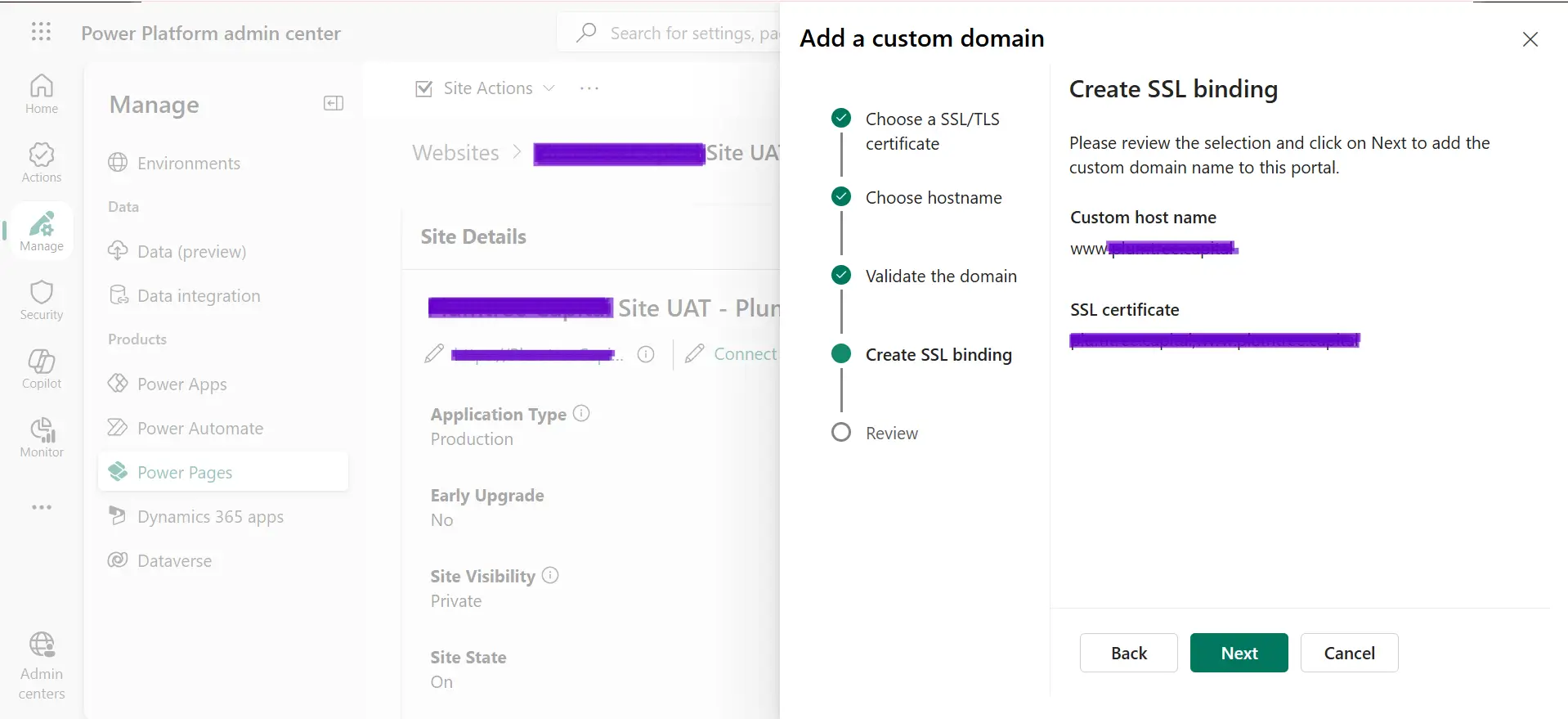
- Select Next.
- Review the details, including:
- Custom Host Name
- SSL Certificate
- Verify that all information is correct and select Next again to begin creating the SSL Binding.
Complete the Configuration
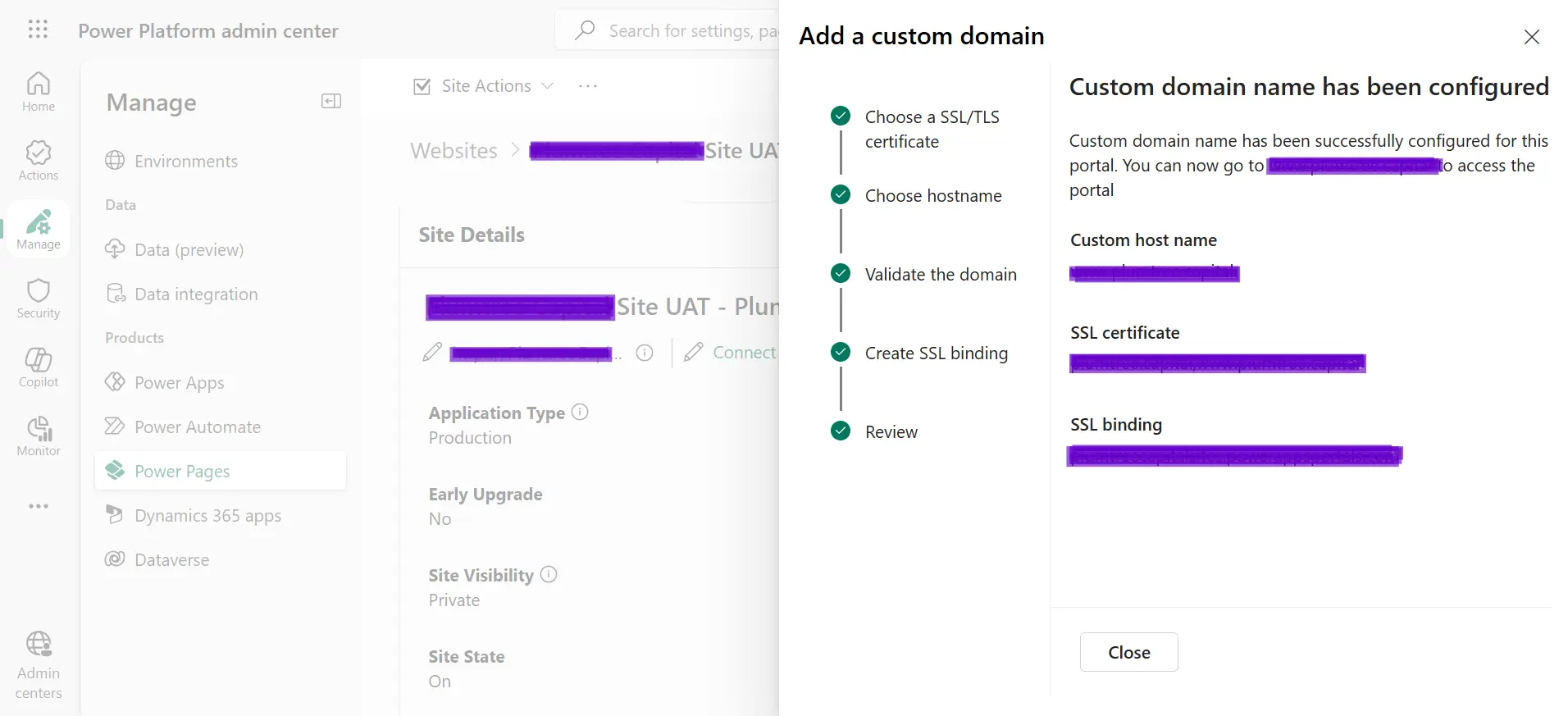
Once the process is completed successfully, you will see the message:
"Custom Domain name has been successfully configured."
Your Power Pages website can now be accessed using your custom domain.
For example:
https://www.yourdomain.com
Select Close to finish the setup.
If you have any doubts or questions related to this blog, you can Contact us by Email: info@voxtus.com
Shivani Gusain
Power Pages Consultant
