
Working with Expressions and Variables · Lesson 12 of 15
Expressions and Variables
Introduction to Expressions and Variables
Expressions
Expressions in Power Automate are formulas that allow you to manipulate, transform, and perform operations on data within your flows. They are integral for dynamic data handling without the need for complex programming.
Expressions are like mini-commands that help you do specific things with your data without needing to be a coding expert. They make your flows smarter and more flexible.
Expressions can be used in flow actions, conditions and trigger.
- In Actions: Expressions work in actions to make your data do what you want in your workflow.
- In Conditions: Use expressions in conditions to create logical paths for your flow based on how your data looks.
- In Triggers: Expressions can decide when your flow should kick into action, based on certain conditions.
Sample Expression:
substring('String’, Start, Count)
Sample data:
substring('Power Automate', 6, 8)
Results in:
Automate
Certainly! Here's a table with a list of common Power Automate expressions, along with their syntax:
| Expression | Syntax |
|---|---|
| Basic Expressions | |
| Concatenate Strings | concat(string1, string2) |
| Length of a String | length(string) |
| Substring | substring(string, startIndex, length) |
| Convert to Lowercase | toLower(string) |
| Convert to Uppercase | toUpper(string) |
| Date and Time Expressions | |
| Current UTC Date and Time | utcNow() |
| Format Date and Time | formatDateTime(dateTime, format) |
| Add Time | addSeconds(dateTime, seconds) |
| Math Expressions | |
| Addition | add(number1, number2) |
| Subtraction | sub(number1, number2) |
| Multiplication | mul(number1, number2) |
| Division | div(number1, number2) |
| Logical Expressions | |
| Equals | equals(value1, value2) |
| Greater Than | greater(variable1, variable2) |
| Less Than | less(variable1, variable2) |
| Array Expressions | |
| Length of an Array | length(array) |
| Contains | contains(array, value) |
| First item in an Array | first(array) |
| Last item in an Array | last(array) |
Variables
Variables in Power Automate are used to store and manipulate data during the execution of a flow. They serve as temporary containers for values and are essential for passing data between different actions and conditions.
Let's explore variables in detail:
Step 1: Creating Variables
In your flow, navigate to the step where you want to create a variable.
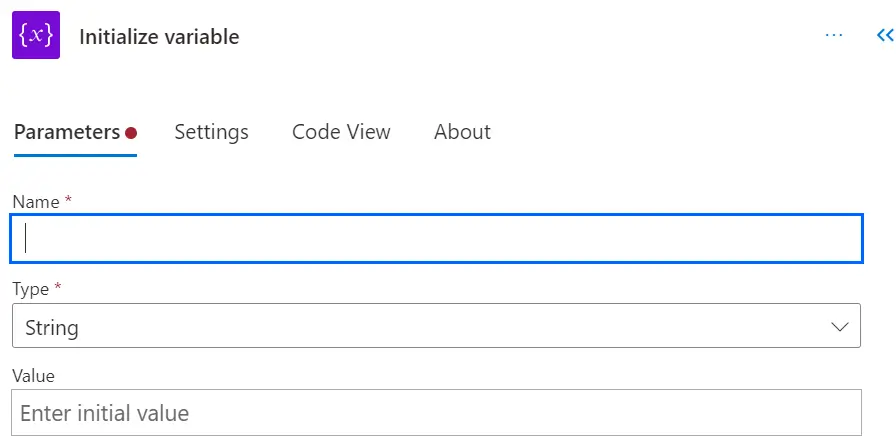
- Use the "Initialize variable" action to create a new variable.
- Set the variable's name, type (String, Integer, Boolean, etc.), and an initial value if needed.
Step 2: Initializing Variables
Variables can be initialized with an initial value, which can be a static value or data from a previous step in your flow.
Step 3: Updating Variables
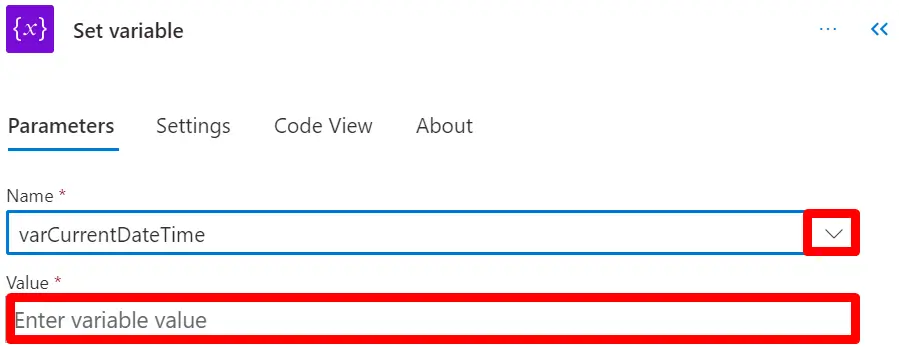
Variables can be updated at any point in your flow by assigning new values to them using "Set variable" action. This allows for dynamic data manipulation and adaptation to changing conditions.
Step 4: Using Variables in Expressions
Variables can be integrated into expressions to perform calculations or transformations. When creating expressions, you can reference variables by their names.